Prerequisite: If you haven’t become an Ensemble Leader yet, click here first and then revisit this guide.
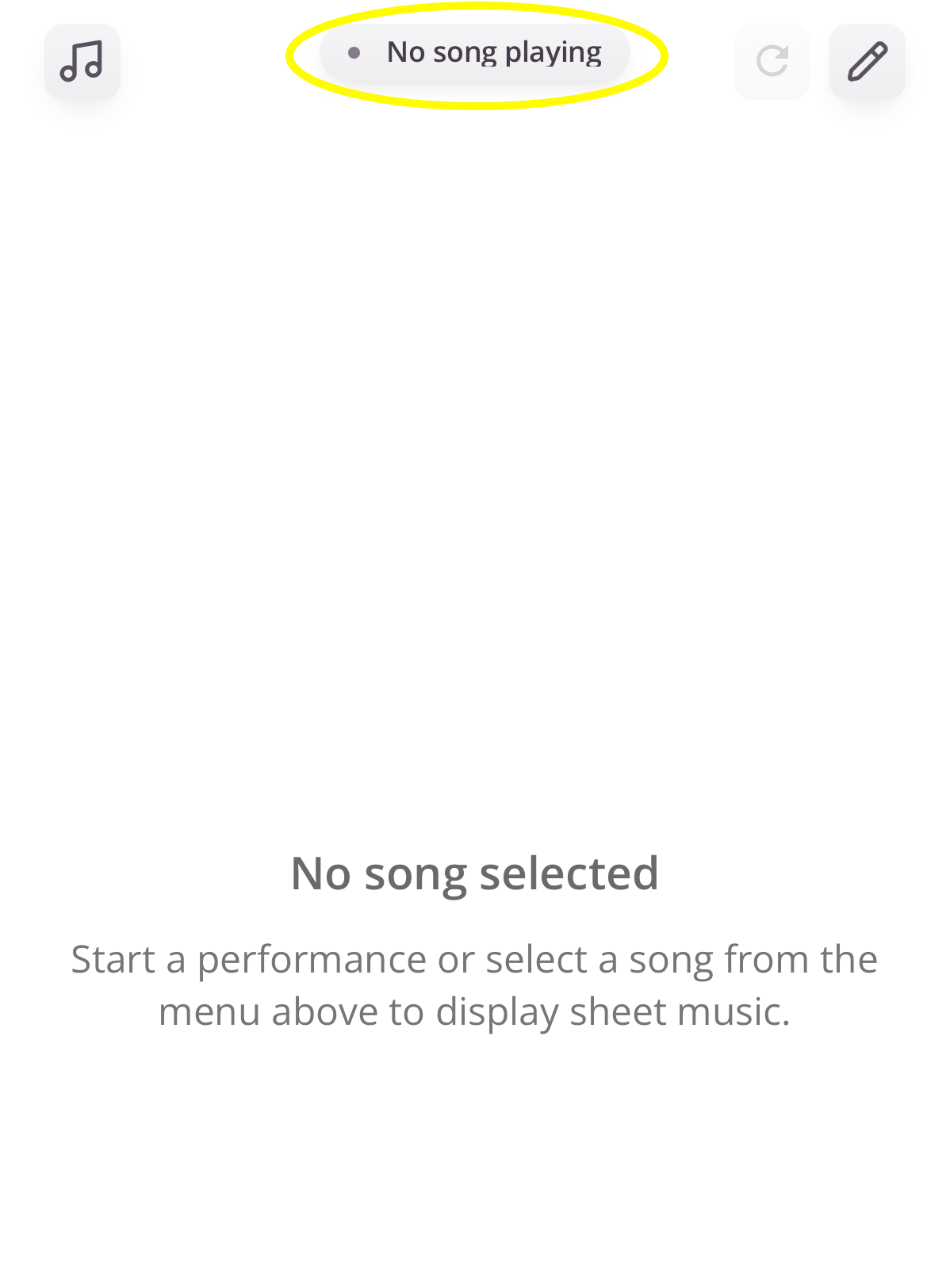
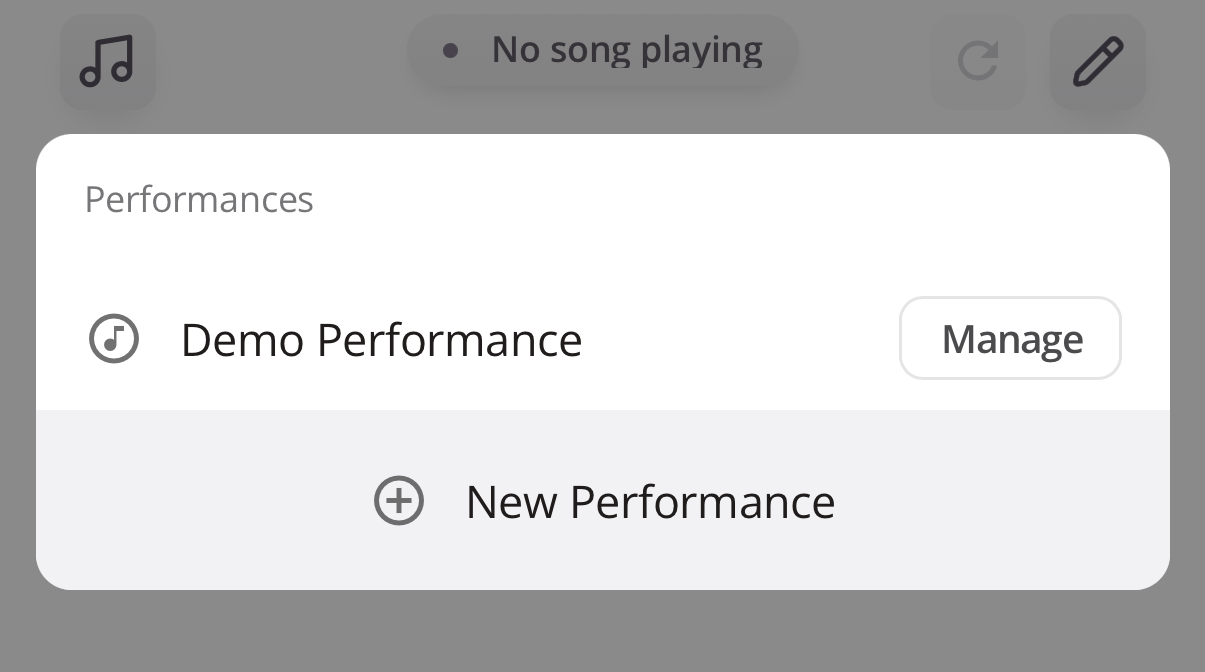
1. Open the Performance menu.
Tap the performance menu in the top center of the music viewer.
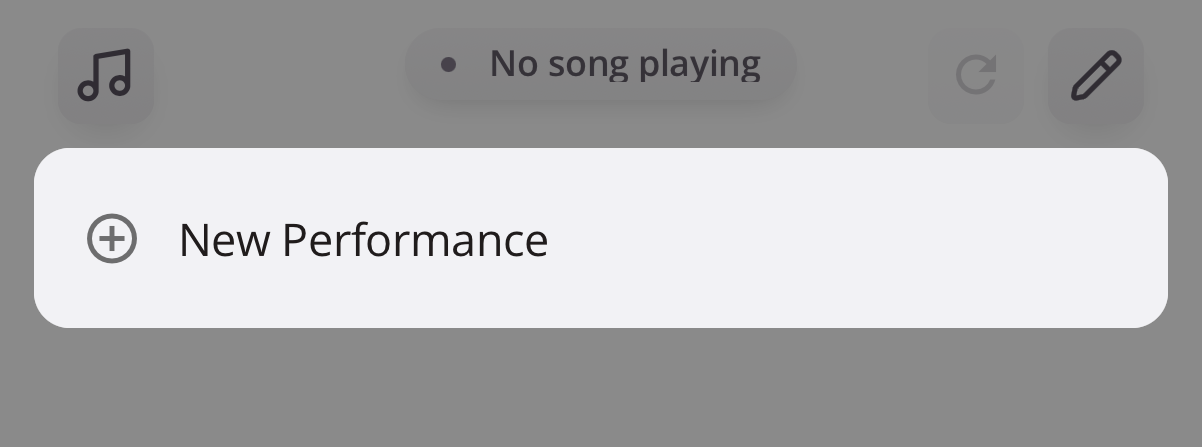
2. Start a new performance.
Tap New Performance. Note: you need to have a network connection to create one.
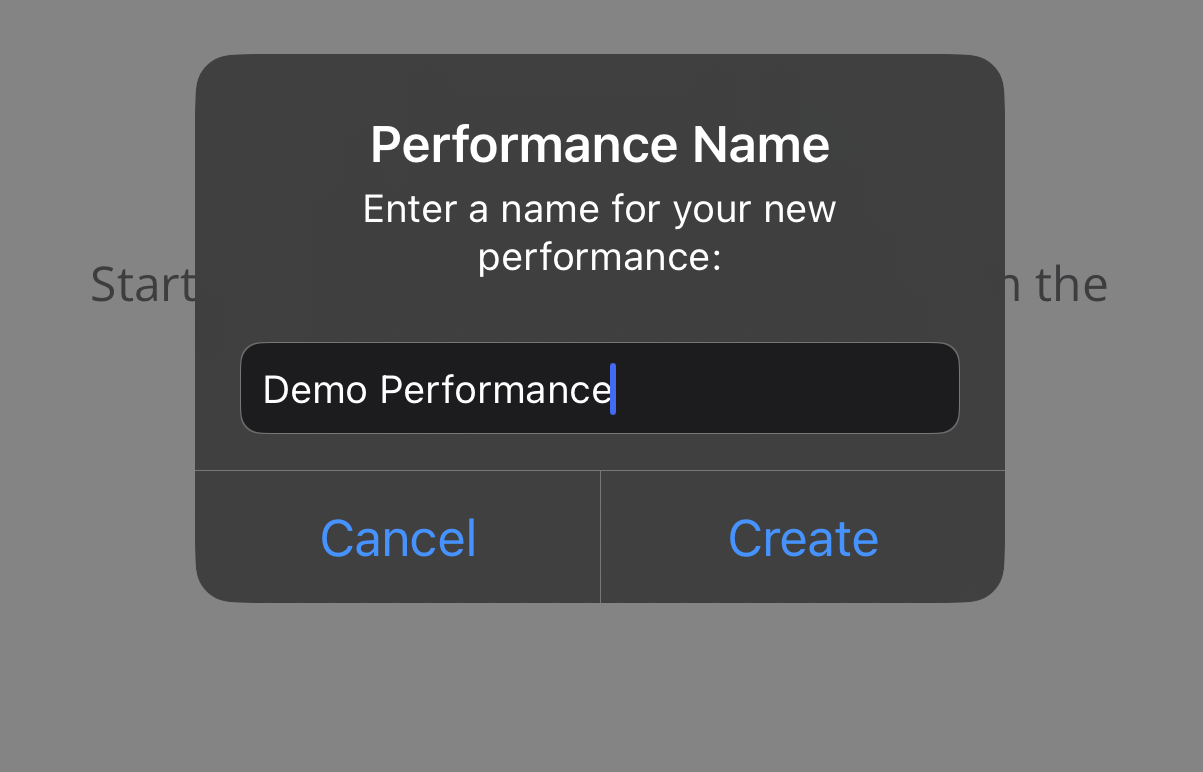
3. Name your performance.
Enter a name (20 characters or fewer) and tap Create. You’ll see a confirmation, then the Performance Manager opens.
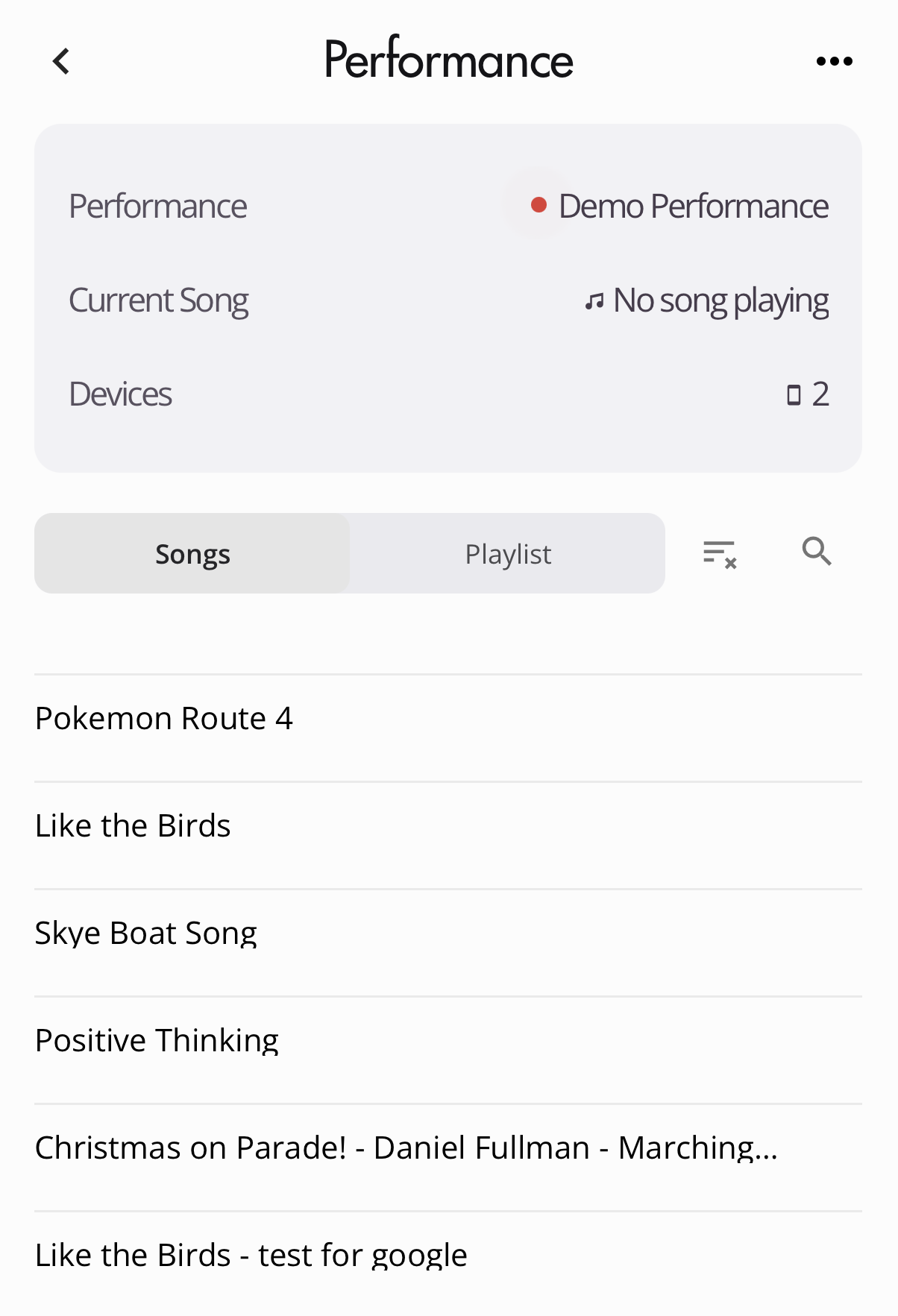
4. Choose the song for your ensemble.
In the Performance Manager, use Songs to browse your library, or Playlist to open a set you’ve already built. Tap a song to push it to everyone who has joined.
5. Change songs as you go.
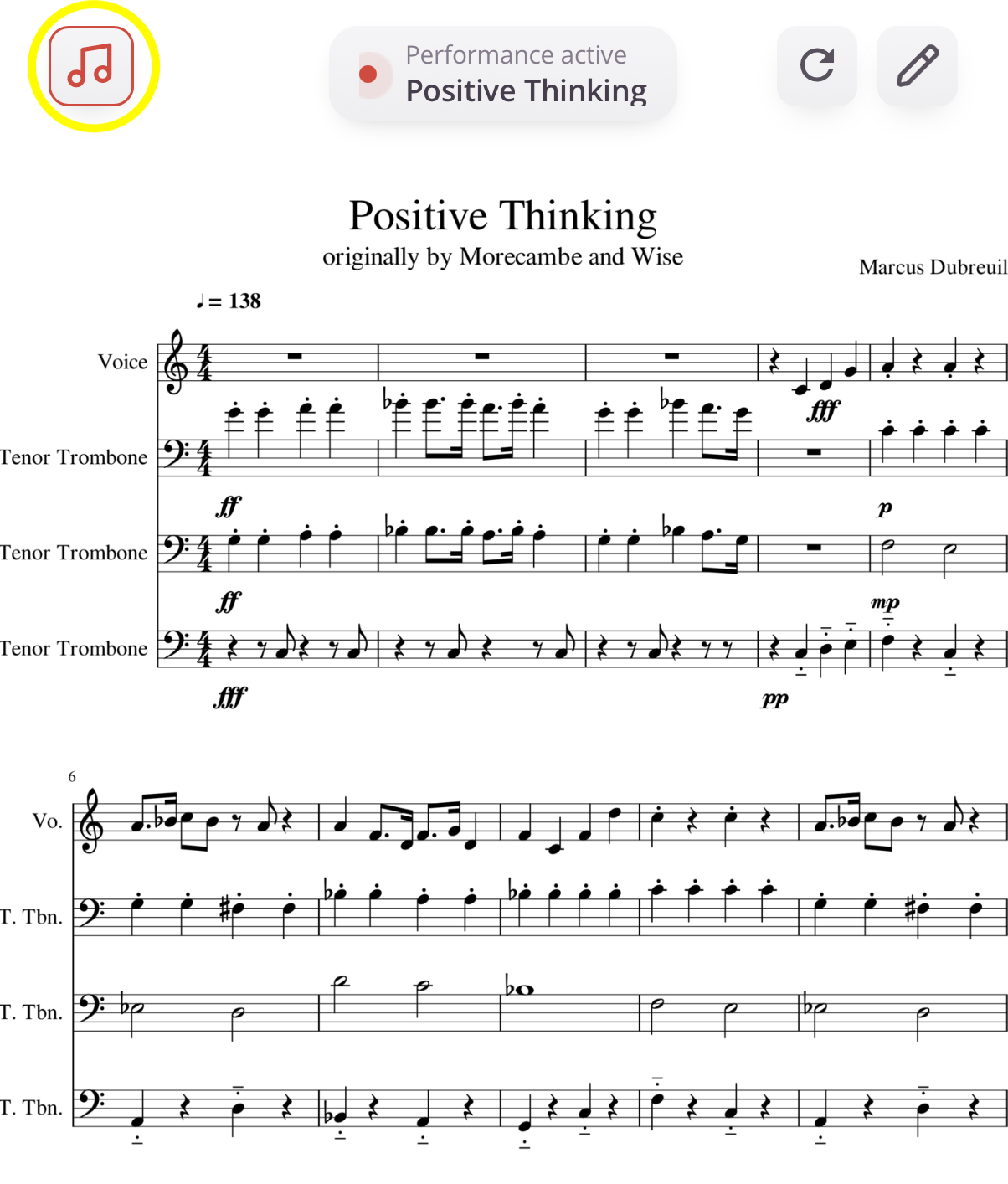
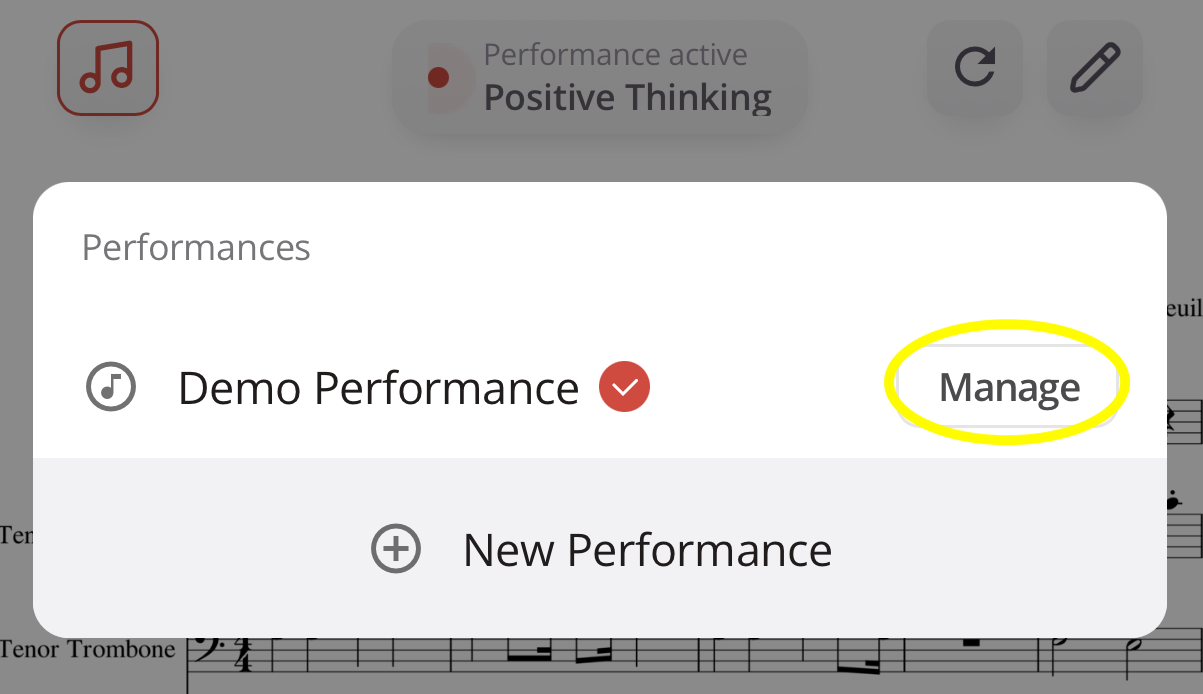
Tap the music icon in the top-left corner (which should be red when a performance is active) or click the Performance menu and choose Manage on the appropriate performance. Then tap the next song. Members stay in sync with whatever you select.
6. End the performance when you’re done.
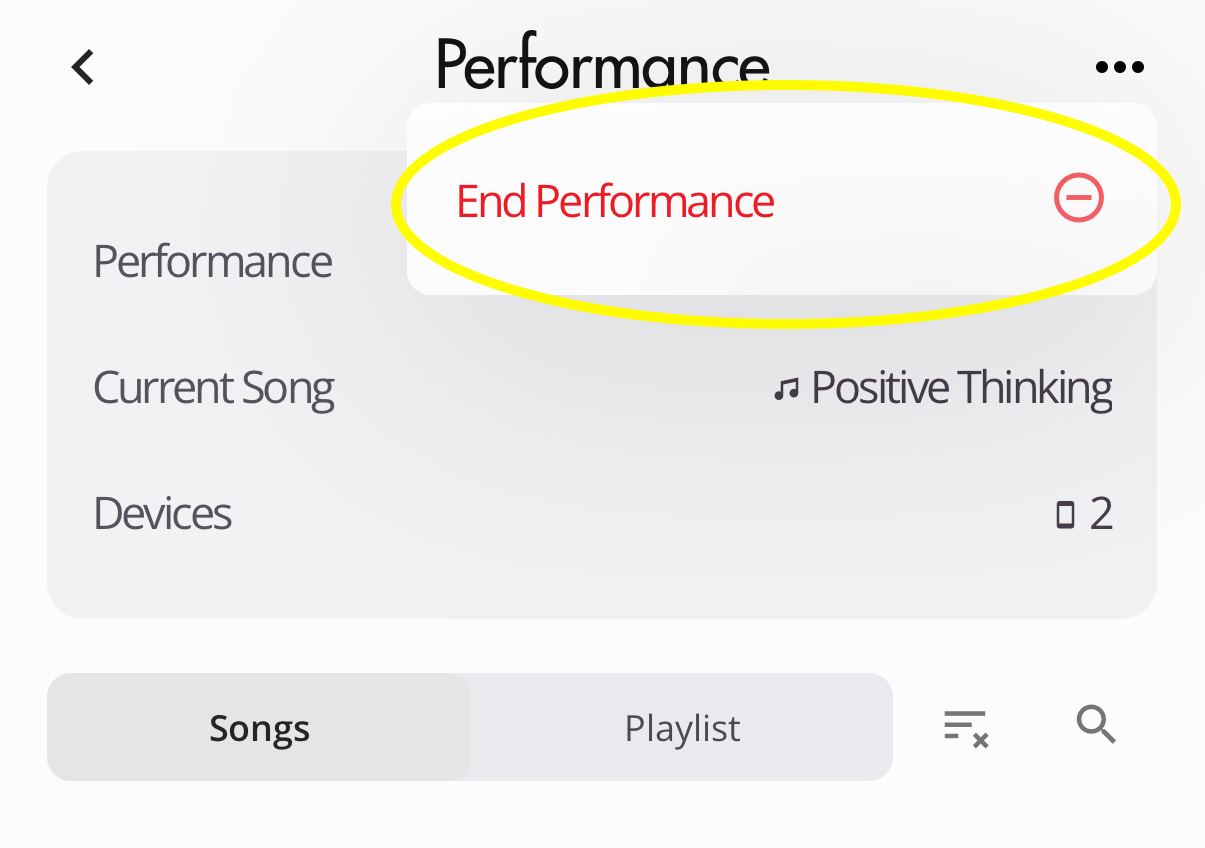
In the Performance manager, tap the ⋯ menu in the top-right corner, then tap End Performance.
Notes
- Ensemble members join from the same performance menu by tapping Join on your performance. For more information on the member experience, click here.
- You can run more than one performance at a time within your ensemble. Names must be unique among active performances.
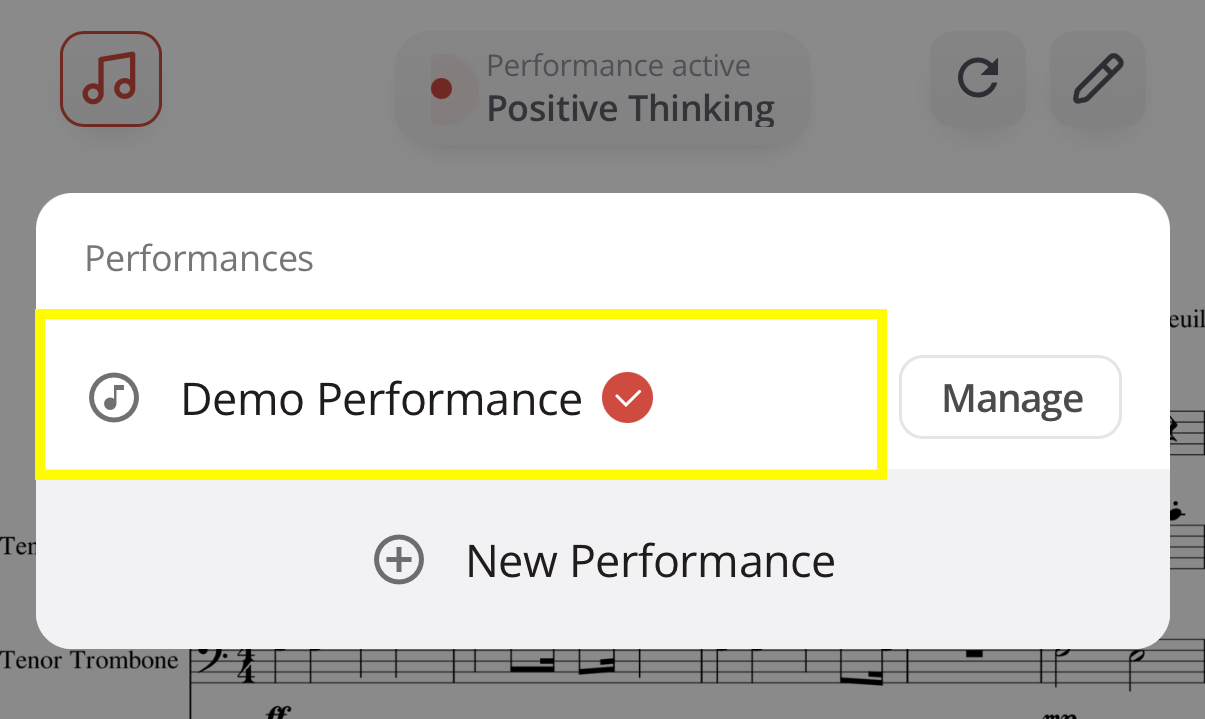
- To leave a performance without ending it, go to the performance menu and tap on the performance row. You should see the red checkmark disappear and the music icon in the top left corner will no longer be red. To rejoin, simply tap the row again or click Manage.
Was this article helpful?
That’s Great!
Thank you for your feedback
Sorry! We couldn't be helpful
Thank you for your feedback
Feedback sent
We appreciate your effort and will try to fix the article