Tools Menu
The Tools Menu provides access to settings, app display options, and additional features within FlipFolder.
To open the Tools Menu, tap the tools icon on the right side of the screen.
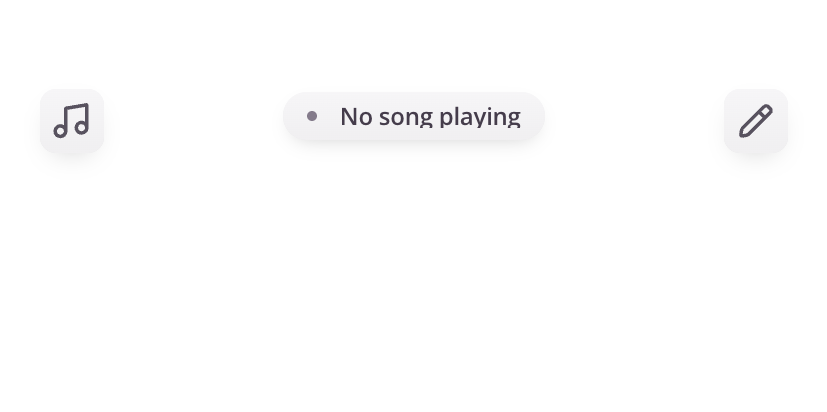
What is the Tools Menu?
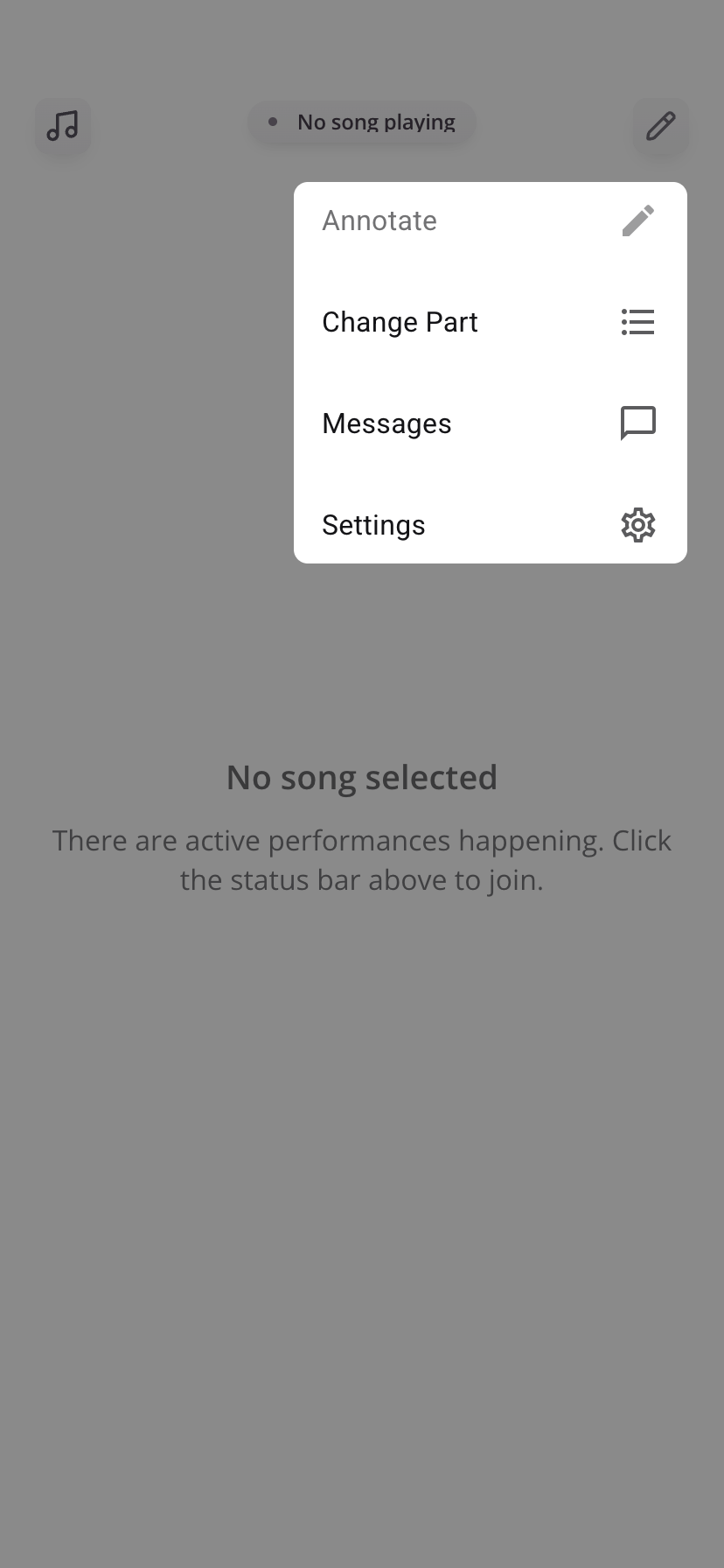
The Tools Menu is where you manage your experience in the app. From here, you can:
- Adjust your settings
- Change your part
- Add annotations to your music
- View or send messages
- Manage your ensemble connection
Key Features
Annotation / Drawing
- Add markings directly to your music
- Useful for notes, reminders, or performance cues
Change Part
- Switch your part for the current song and future displayed songs
- Changes take effect immediately
Messages
- View messages from your ensemble leader
- Stay informed about updates from your ensemble leader
Settings
Access additional settings and controls for your app and ensemble.
Settings Overview
Ensemble Settings
Download Songs
Download all music to your device for offline use- Recommended before rehearsals or performances
Change Default Part
Set your default part across all songsBecome a Ensemble Leader
Request permission to manage performances- Requires approval
Remove Ensemble
Disconnect your device from the current ensemble
App Settings
Send Error Reports
Report issues to supportLock Orientation
Prevent screen rotation while using the appPower-Saving Mode
Reduces screen usage while waiting during performances- Automatically exits when the performance changes
Dark Mode
Adjusts display for better visibility in bright environments
Tips
- Use the Tools Menu to quickly access features without leaving your current view
- Download songs in advance to avoid connectivity issues
- Adjust settings based on your performance environment
Notes
- Some features (such as performance control) require Ensemble Leader permissions
- Available options may vary depending on your role in the ensemble
Was this article helpful?
That’s Great!
Thank you for your feedback
Sorry! We couldn't be helpful
Thank you for your feedback
Feedback sent
We appreciate your effort and will try to fix the article