Navigation Overview
FlipFolder is organized into two primary areas: Music Library and Tools Menu.
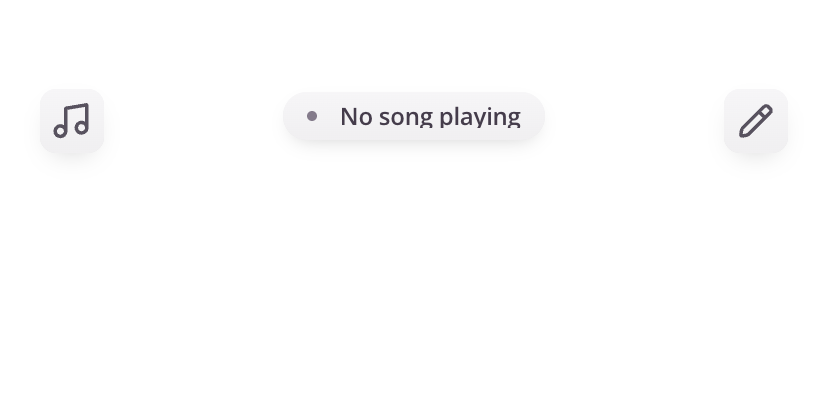
Music Library (Left Side)
Tap the music icon to open your library.
This is where you access and browse all available songs.
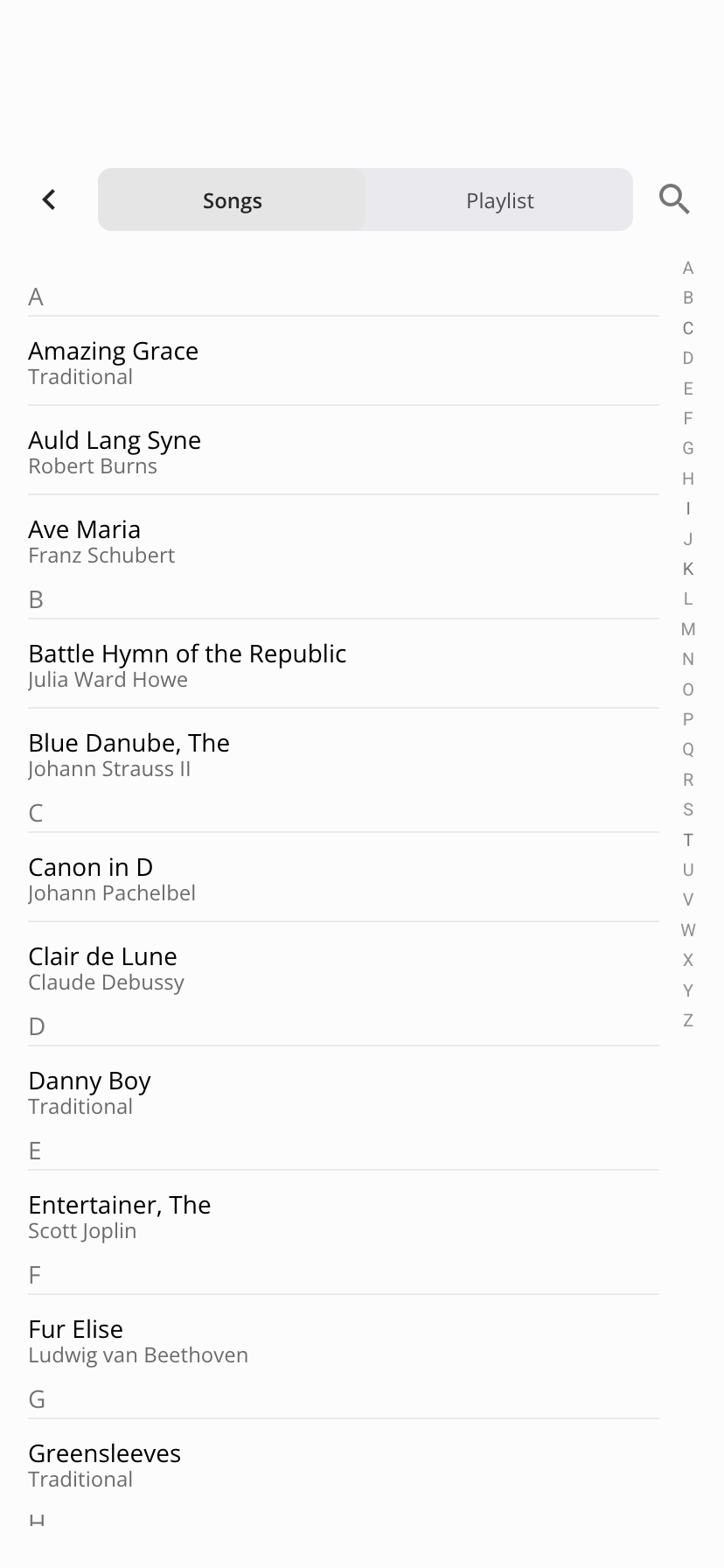
Key Features
Songs
- View all songs in your event's music library
Sessions
- Displays sessions created by your event clinician
- You can toggle between sessions and the full song list
- Can be sorted in session or alphabetical order
Search
- Quickly find a song by typing part or all of its name
Tools Menu (Right Side)
Tap the tools icon / menu to access app controls and settings.
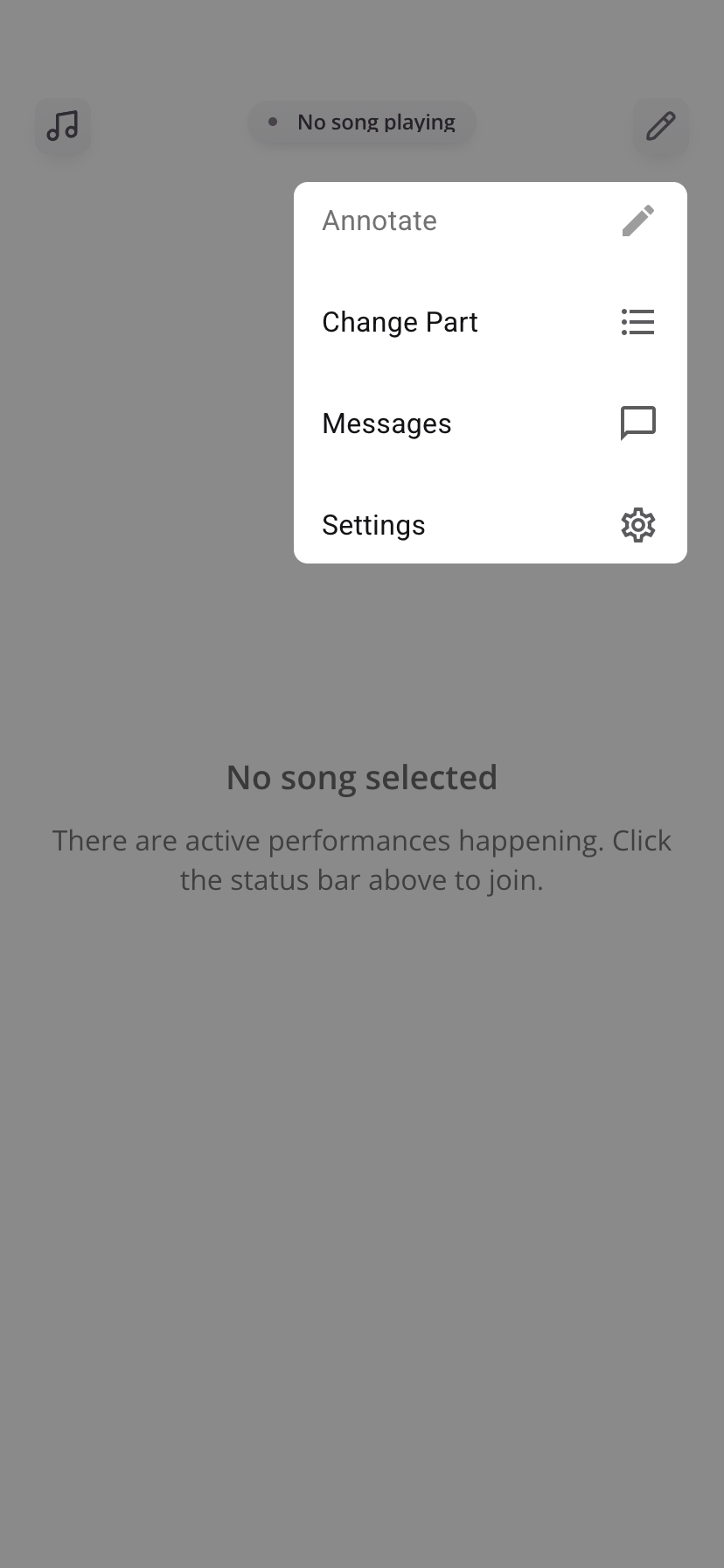
Key Features
Annotation / Drawing
- Add markings to your music
App Settings
- Access app-level settings and preferences
Settings Overview
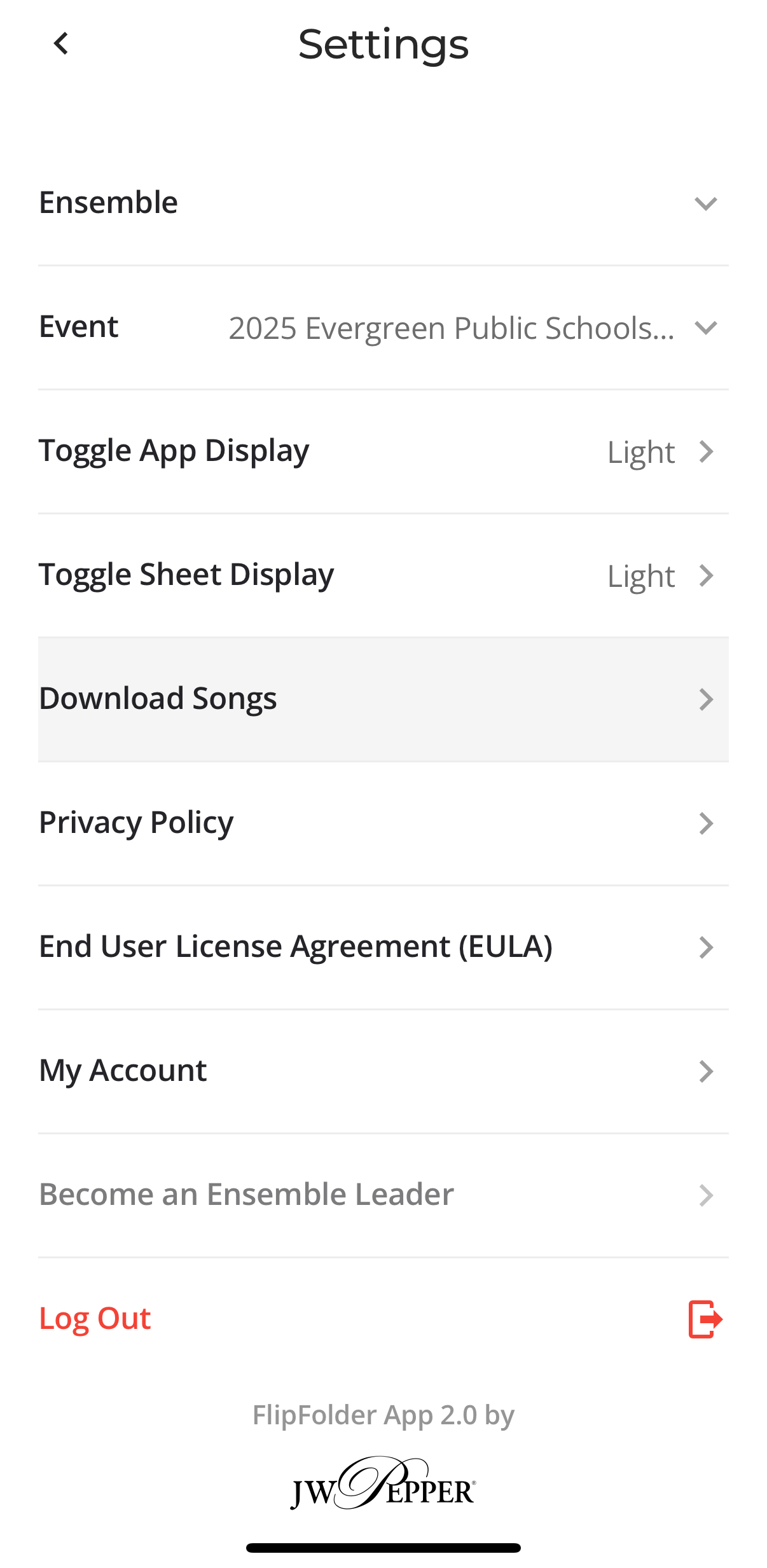
Within the Tools Menu, you’ll find additional settings:
Ensemble Settings
Change Event
Download Songs
Download all music to your device for offline use- Recommended before reading sessions
- Recommended before reading sessions
Remove Event
Disconnect this live event from your device
App Settings
App Display
Change the display mode for the FlipFolder AppSheet Music Display
Change the display mode for sheet music in the FlipFolder App. Dark Mode Inverts sheet music colors for better visibility in bright environmentsMy Account
Manage your account name and settings.
Managing Multiple Events
If your device is connected to more than one event, you can switch between them from the Settings Page in the Tools Menu.
Was this article helpful?
That’s Great!
Thank you for your feedback
Sorry! We couldn't be helpful
Thank you for your feedback
Feedback sent
We appreciate your effort and will try to fix the article