1. Open the app.
You'll land on the home page. If you're asked to sign up or sign in, click here first and then revisit this guide once you've finished installation and setup.
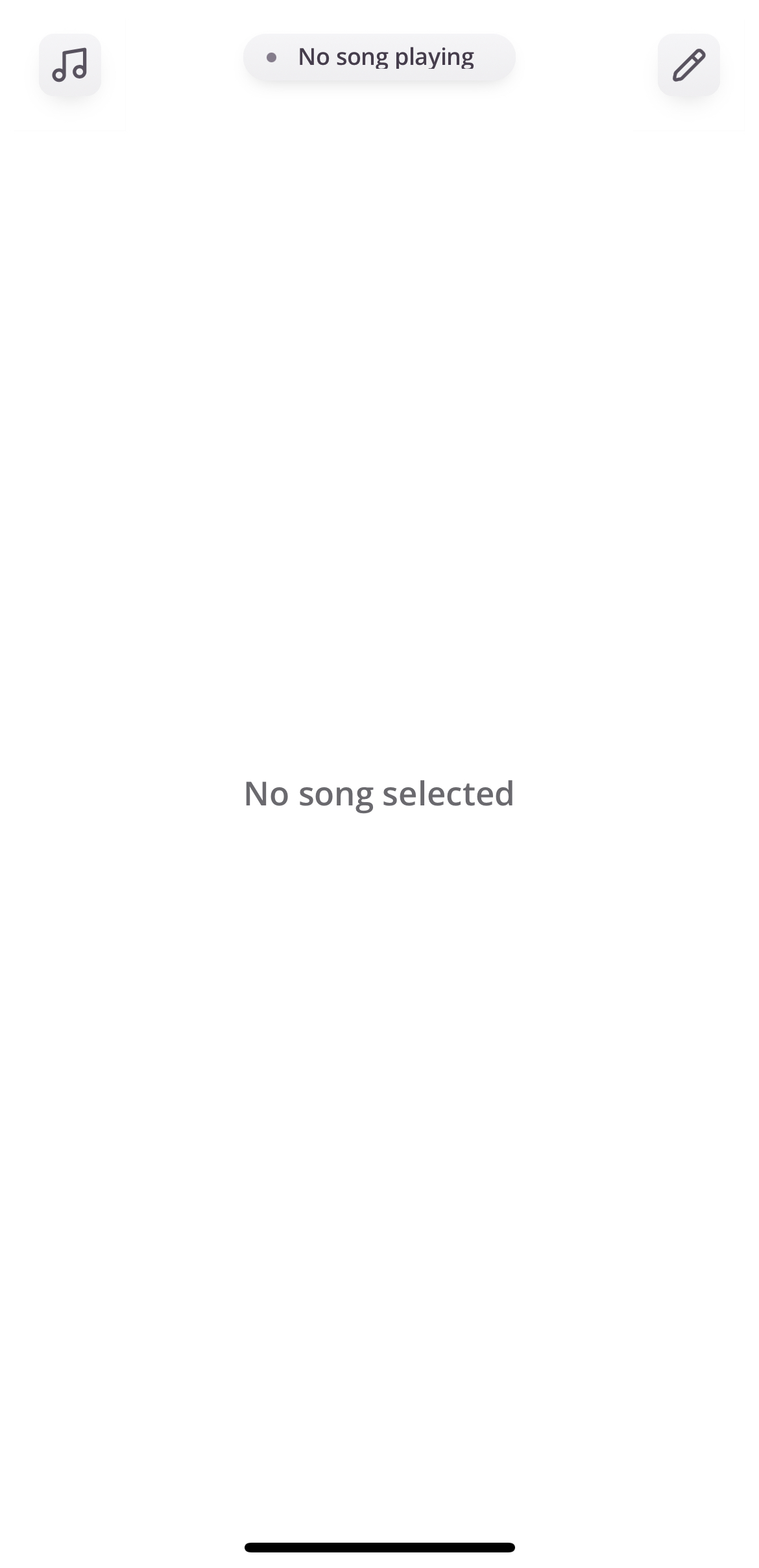
2. Go to your Library.
Tap the music icon in the top-left corner.
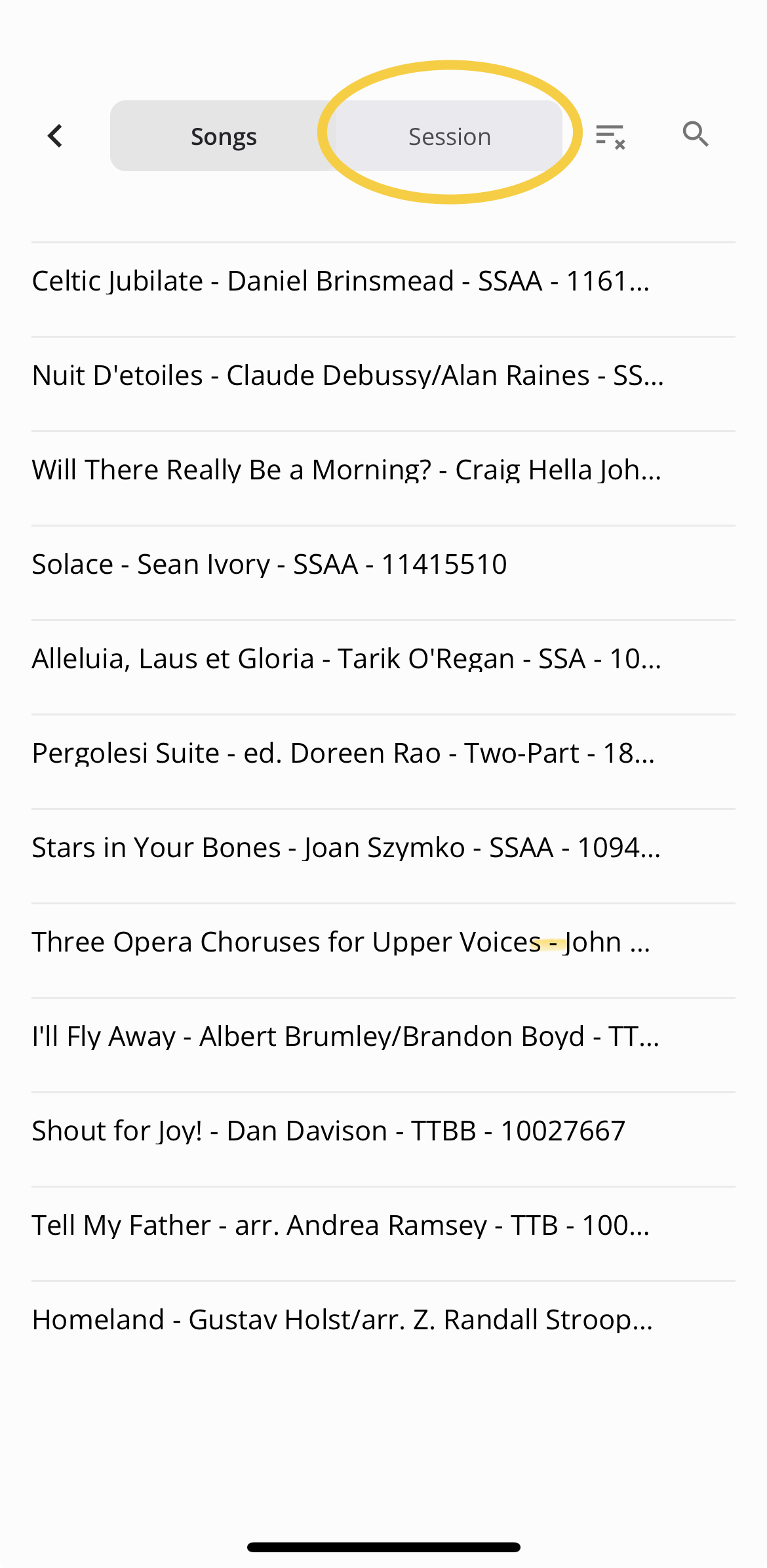
3. Switch to Session view.
By default, you may see all of your songs. During an event, toggle to Session to see your Reading Sessions.
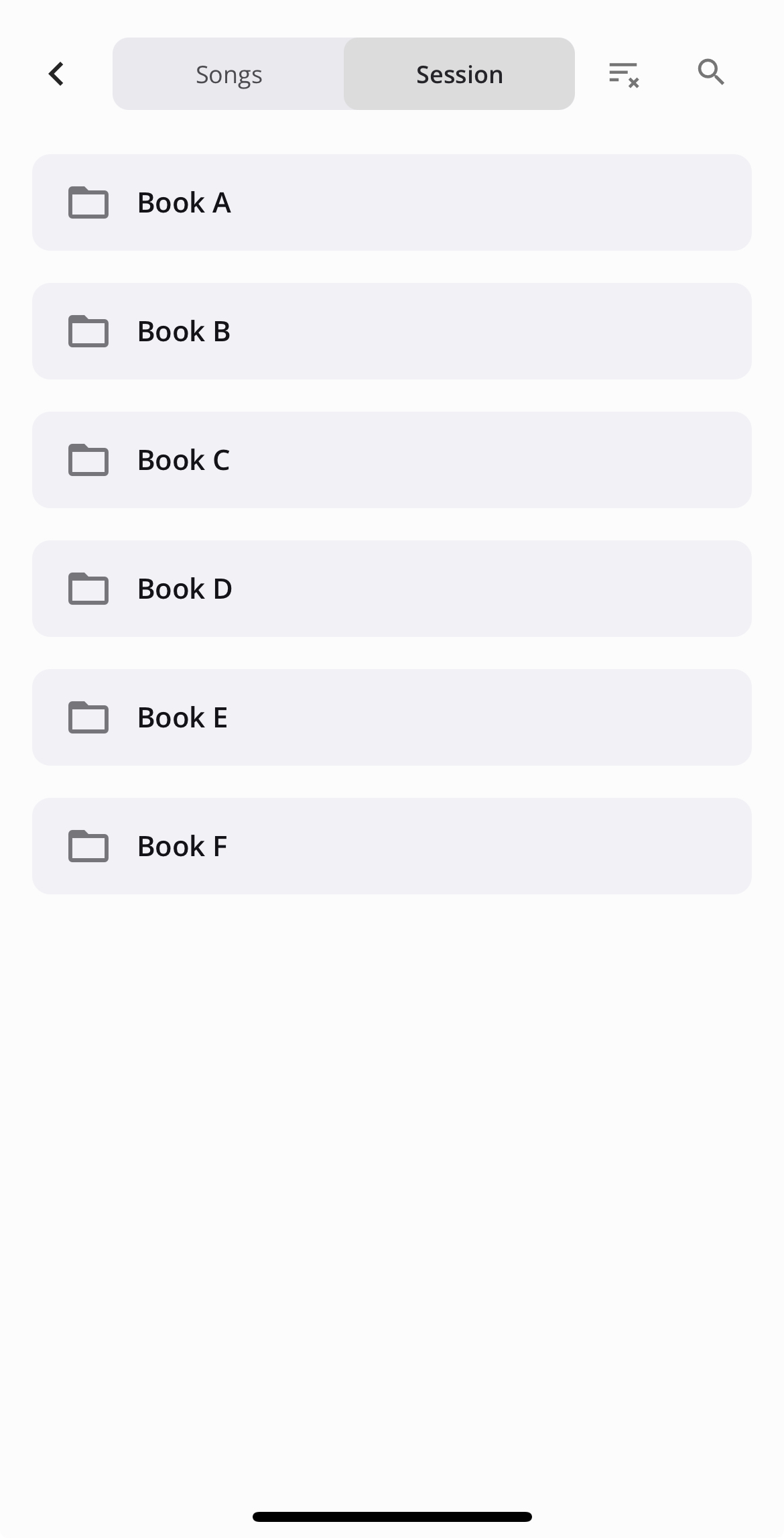
4. Select your session.
Tap the session you're participating in.
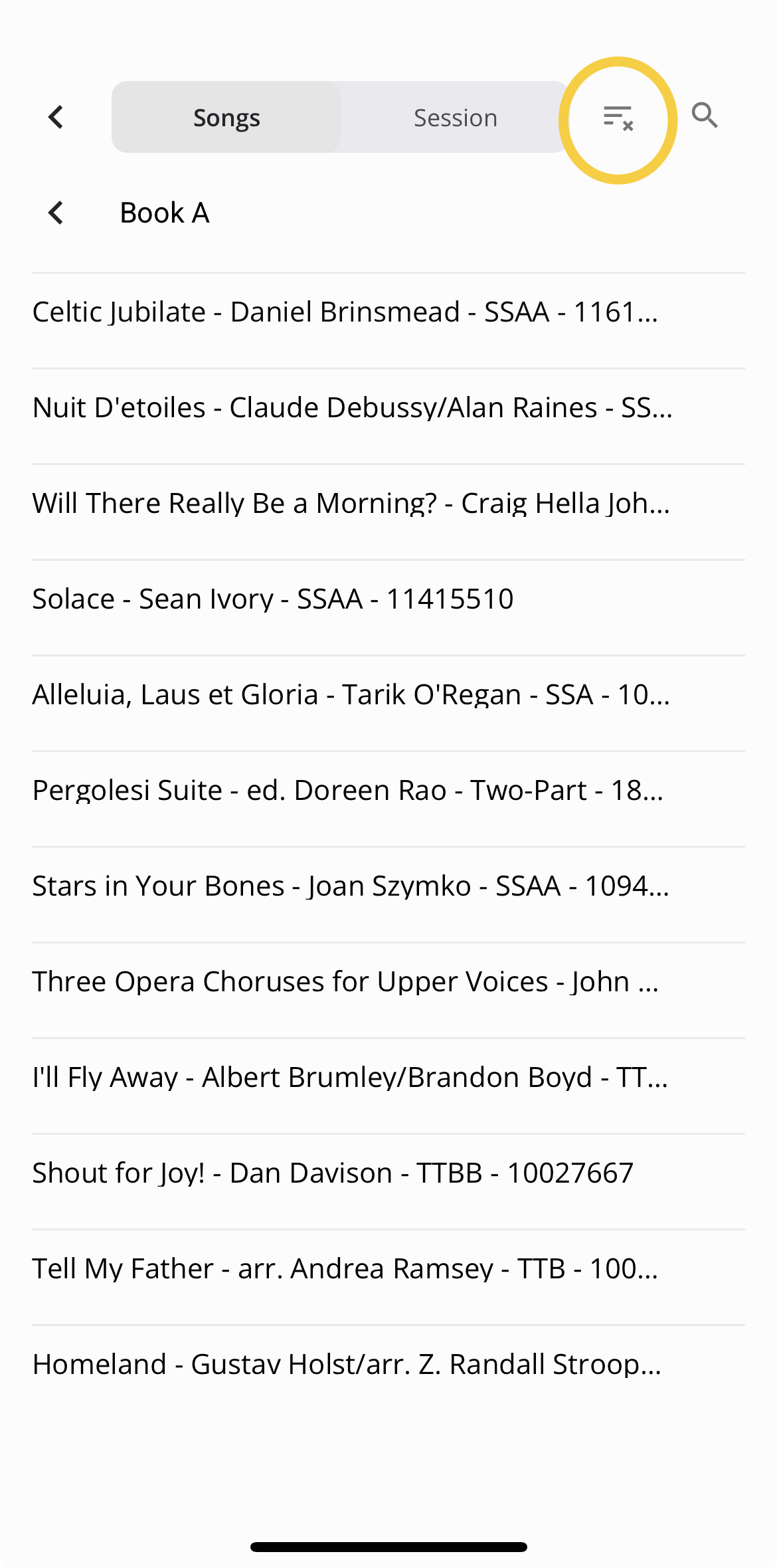
5. Set the order to Session.
If songs appear alphabetically, switch to session order instead. This keeps you in sync with your event clinician.
6. Tap a song to view it.
This opens the sheet music viewer so you can follow along.
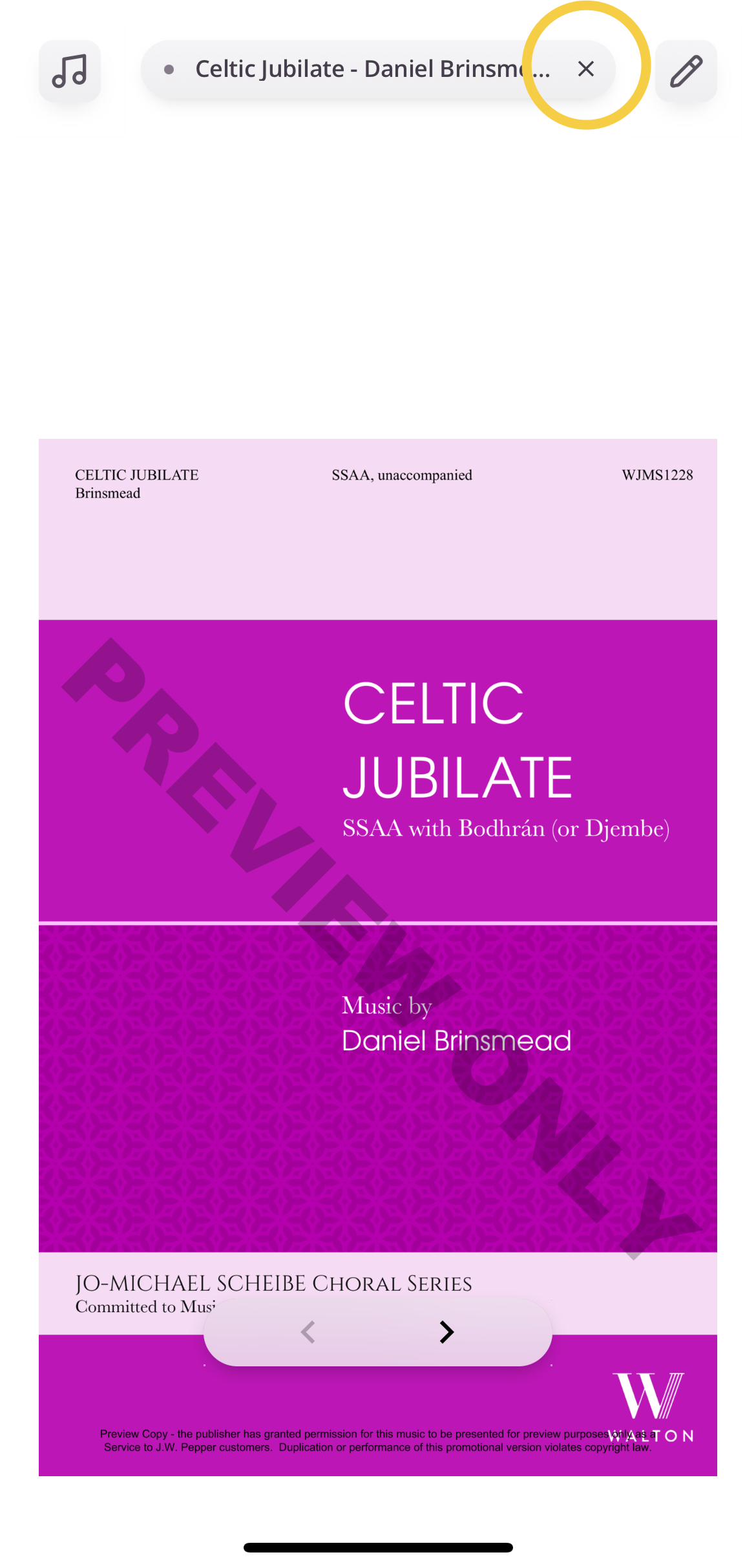
7. Close the song when you're done.
Tap the X to return to your session's song list — or tap the Library button to start over.
Notes
- For more information on the music library menu, click here.
- For more information on the tools menu, click here.
Was this article helpful?
That’s Great!
Thank you for your feedback
Sorry! We couldn't be helpful
Thank you for your feedback
Feedback sent
We appreciate your effort and will try to fix the article